Download Unsub Free for Mac + PC.
Cancel your subscription. Keep your music.
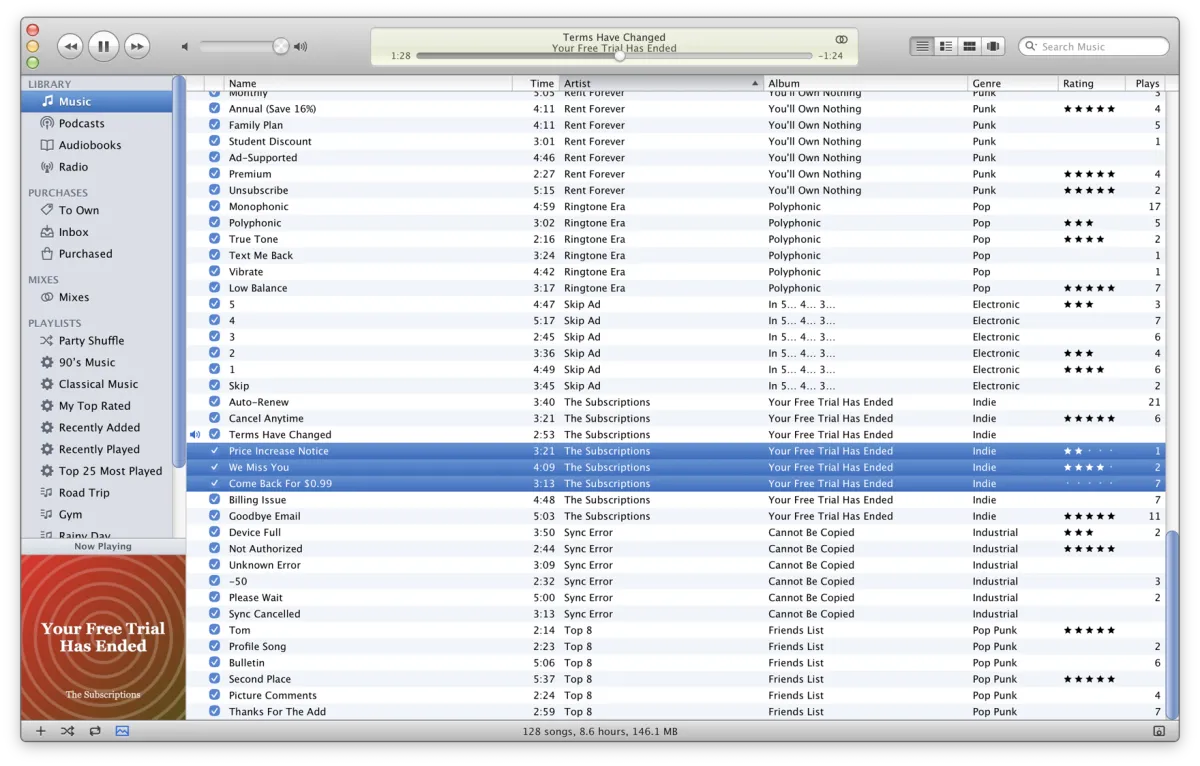
Your music used to live on your computer, in a folder, as files. Unsub is a desktop music player for files you own. It plays them, organizes your library, rips your CDs, syncs your iPod and gets out of the way.
No account, no feed, no “Made For You”.
What it does
- Plays the files you own. MP3, AAC, ALAC, FLAC, Opus, Vorbis, WAV, AIFF, WavPack and APE. Gapless and bit-perfect.
- Imports your Music or iTunes library with its play counts, ratings and playlists. Smart playlists arrive as the songs currently in them.
- Brings your Spotify and YouTube Music playlists and your listening history.
- Syncs classic iPods, and copies the music off an old one. New, and so far tested only against simulated iPods. Tell us how yours does.
- Plays to Chromecast and Sonos, plus AirPlay on the Mac. No premium tier.
- Rips CDs with MusicBrainz lookup and AccurateRip verification. Mac only.
System Requirements
- Mac: macOS 11 or later, Apple chip or Intel.
- Windows: Windows 10 or 11, 64-bit.
- Optional: an iPod with a click wheel.
- Required: music you own.
Good to know
- The Mac app is signed and notarized, so it opens like any other app.
- On Windows, SmartScreen will say “Windows protected your PC” until there's a code-signing certificate. Choose More info › Run anyway.
- Unsub updates itself, and only when you let it.
- Free and open source (GPL-3.0-or-later). Read the source.
How to
Shortcuts are the Mac ones. On Windows, Cmd becomes Ctrl.
Add your music
- Drag a folder, or some files, onto the Unsub window.
- Or choose File › Add to Library… (Cmd+O). That picker takes a folder, not single files.
- On a first launch with an empty library, the welcome sheet offers Add “Music” Folder, Add iCloud Drive › Music (Mac only, and only if the folder exists) and Choose Folder…. Open it again any time with Help › Welcome to Unsub….
- Progress shows in the display at the top. Unsub says so if it finds no music or can't add some files.
Your files stay where they are. By default Unsub indexes them in place. Nothing is copied or moved. Two options in Unsub › Preferences… › Advanced change that, and both start off: Copy files to media folder when adding to library copies, never moves. Keep media folder organized only moves files already inside the media folder. The media folder defaults to an Unsub folder inside your Music folder (~/Music/Unsub on a Mac). It also holds CD rips, podcasts and store purchases.
iCloud Drive. Files that are in iCloud but not on this computer are listed by file name without downloading anything. Unsub fetches a song when you press play and shows “Downloading from iCloud”. Advanced › Get Song Details from iCloud… (Mac and Windows) downloads songs one at a time to read their tags and covers, then gives them back.
Limits: Adding a folder picks up mp3, m4a, m4b, mp4, aac, flac, ogg, oga, opus, wav, aif, aiff, wv and ape. It skips dotfiles. It does not pick up DSD files. Dropping a .pls or .m3u file adds radio stations, not songs.
Bring your Music or iTunes library
- Mac: choose File › Import Music Library. macOS asks to let Unsub use Media & Apple Music the first time.
- Windows: in iTunes or Music, choose File › Library › Export Library…. Then in Unsub choose File › Import Library XML… and pick the file. On a Mac, the same menu item works with an exported file too.
- The Import Music Library sheet says how many songs there are and whether their files are where Music expects them. If some are not, choose Choose Folder… and point it at the music. Unsub matches by file name and changes nothing in that folder.
- Click Import. It reads Import Without Locating until you have picked a folder. A report of what was added, matched and left out follows.
Songs, podcasts and audiobooks come with their play counts, skip counts, last played date, ratings (rounded to whole stars), dates added, and playlists and playlist folders. Importing again updates the same playlists.
Limits: Files are added where they are, not copied. Smart playlists arrive as the songs currently in them, not as rules. Apple Music streaming-only songs, videos and other media don't come across. To list the streaming-only songs, open Purchases › To Own and click Compare with Music Library (Mac) or Choose Library XML…. Once To Own has entries, the header button reads Compare with Music… on both platforms, and on Windows it asks for a Library XML. Songs that exist only in iCloud arrive as placeholders and download when you play them.
Leave Spotify, YouTube Music or Last.fm
- Add your music first. Unsub matches against songs you already have.
- Get your data from the service. Spotify: from spotify.com/account/privacy choose “Account data” (playlists and the last year of plays; takes a few days) and “Extended streaming history” (every play; up to 30 days). YouTube Music: in Google Takeout choose “YouTube and YouTube Music”, keep playlists, music and history, and set history to JSON. Last.fm: there is no file export. Import it into ListenBrainz with Import Last.fm History, then export from ListenBrainz.
- In Unsub choose File › Import from Spotify, YouTube Music or ListenBrainz…. The welcome sheet's Bring your Spotify playlists row opens the same sheet. Pick the tab for your service.
- Click Choose File… (zip, json, jsonl or csv) or Choose Folder… (an Exportify CSV folder works). The sheet shows how many playlists, songs and plays matched.
- Leave Add plays to play counts ticked if you want your history counted. It only appears when the export contains plays. Click Import.
What you get. Imports bring no audio, only playlists and history. Each playlist is rebuilt in a folder named From Spotify, From YouTube Music or From ListenBrainz, from the songs you own, in the order of the export. Importing again refills them in place. Everything else is listed on Purchases › To Own: playlist songs with no match, and songs from your history that you played at least twice. Each album there has buttons for Bandcamp, Qobuz, 7digital and iTunes, and Find Stores looks up exact store pages.
Clearing To Own. A song leaves the To Buy filter once it is in your library. Remove one with its × button or right-click Remove from To Own. Forget Spotify Songs (or the same for another service) removes everything that service added; importing the export again brings it back.
Limits: Exports are read on your computer. Nothing is uploaded and no account or API key is needed. Plays under 30 seconds are not counted. Plays you scrobbled from the Music app may count twice if you also imported your Music library. Songs that match more than one of yours equally well are left out. From YouTube Music history, only songs on artists' “Topic” channels are used. With Add plays to play counts off, history-only songs stay off To Own too. Cancelling is between you and the service.
Store downloads
- Open Purchases › Inbox in the sidebar and click Watch Downloads Folder. macOS asks before Unsub can look in your Downloads folder.
- Buy and download as usual from Bandcamp, Qobuz, 7digital or HDtracks.
- A finished download appears in the Inbox with its store, album, artist, song count, formats and size. Click Add to Library, or Ignore.
- Unsub unpacks it into the Purchases folder inside your media folder, as Album Artist/Album, then adds it to the library. The original zip or folder is left alone.
- Purchases › Purchased lists everything added this way.
Limits: Watching is off until you turn it on. Stop Watching and Check Now are in the bottom bar. Unsub offers .zip files that contain audio, and folders of audio. Folders already in Downloads when you start watching are not offered; zips already there are. Downloads still in progress are ignored. The store is guessed from the file names, and anything else is labelled “Download”. It recognises flac, mp3, m4a, ogg, opus, wav, aif, aiff and wv. An album folder that already exists is never touched; a new one becomes “Album (2)”.
Rip a CD (Mac only)
- Insert an audio CD. It appears under Devices in the sidebar. Select it. Every track is ticked.
- Click Import Settings… in the bottom bar. Import Using: FLAC Encoder (the default), Apple Lossless Encoder or AAC Encoder. For AAC, Setting: Good Quality (128 kbps), High Quality (256 kbps) or Maximum Quality (320 kbps). Verify songs with AccurateRip is on by default.
- Unsub looks the disc up on MusicBrainz. If several releases share the disc, an Edition menu appears.
- Click Import CD. It becomes Stop Importing while it works. Each finished track joins the library at once, and stopping keeps the ones already done.
- Hover a track's status icon to see whether it matched AccurateRip.
Where it goes. Into the media folder as Album Artist/Album/1-01 Title.flac, with front cover art if MusicBrainz has one. If it doesn't know the disc, tracks are named “Unknown Artist”, “Unknown Album” and “Track 01”.
Limits: Mac only. Unsub can't read audio CDs on Windows. One rip at a time. A mismatch with AccurateRip is normal on drives with a read offset; otherwise it may mean a scratch.
Clean up song info
- Select some songs in the library or a playlist, then choose Advanced › Clean Up Song Info… or right-click and pick Clean Up Song Info…. With nothing selected it acts on every song in the list you are looking at.
- Under Change: choose Name (the default), Artist, Album, Album Artist, Composer or Genre.
- Tick what you want. All are off to begin with: Tidy up spaces and underscores; Remove tags like (HD) and web addresses; Remove track numbers from the start and Remove the artist from the start (Name only); remove a number of characters from the start or end; Replace one piece of text with another; Change capitalization to Title Case, Sentence case, lowercase or UPPERCASE.
- The preview shows how many songs will change, before and after. Apply stays disabled until something would change.
- Click Apply. It runs in the background with a Stop button.
Limits: Apply writes the new tags into the music files. Files that can't take tags, such as iCloud placeholders, change in the library only. The preview lists at most 500 changes. “Junk” means bracketed groups that are entirely things like “Official Video”, “Lyrics”, “HQ”, “HD” or “320 kbps”, plus .com, .net and .org addresses. Live, Remix, Acoustic, feat. and Remastered stay.
Sync an iPod
- Plug in the iPod. It appears under Devices. Select it. Nothing syncs on its own.
- The Summary, Music, Podcasts and Books tabs choose what goes across. Music is the Entire music library or Selected playlists. Options on Summary include Sync only checked songs and Convert higher bit rate songs to 128, 192 or 256 kbps AAC (off by default).
- The bottom of the window says what a sync would do, or that the iPod is up to date. Click Sync.
- The first sync to each iPod asks for confirmation. Unsub only changes or removes songs it put there itself, and keeps a copy of the iPod's database beside the original before every sync.
- Play counts from the iPod are merged into your library, then cleared on the iPod.
- Eject with the button in the sidebar.
Models. iPod 1st to 4th generation, photo, mini, video, classic, nano 1st to 4th generation, and shuffle 1st to 4th generation. The nano 5th generation can be browsed, played and copied from, but not synced. The nano 6th and 7th generation, iPod touch and iPhone are not supported. The classic and the nano 3rd and 4th generation need a FireWire ID that Unsub reads from the iPod's files, or from its USB connection on a Mac.
Limits: This is new and not yet tested on every model. Songs the iPod can't play as they are get converted: other lossless files to Apple Lossless, other lossy files to 256 kbps AAC. On Windows: if the iPod's files lack the FireWire ID, sync is refused. Unsub can't eject an iPod there, so use Safely Remove Hardware. Windows can't open a Mac-formatted iPod without extra software, and even then it's usually read-only, so Unsub can't sync it.
Get music off an old iPod
- Plug in the iPod and select it under Devices.
- On the Summary tab click Copy to Library…. You can also right-click the iPod in the sidebar and choose Copy Music to Library….
- Choose All songs or Selected playlists. Skip songs already in my library, Bring play counts and ratings and Recreate playlists are ticked to begin with. The sheet shows how many songs are new and how big the copy is.
- Click Copy. The display shows progress and a Stop button.
Songs are copied into your media folder as Album Artist/Album/NN Title, whatever the copy option in Preferences says. Playlists land in a folder named From and the iPod's name. The iPod itself isn't changed. It works on iPods Unsub can't sync, such as the nano 5th generation.
Limits: Songs bought from the iTunes Store before 2009 are still copy-protected and stay behind. Unsub also skips songs it can't tell apart from several in your library. A sync and a copy can't run at once.
Sync other players
- Rockbox: plug it in. Unsub finds any drive with a .rockbox folder by itself.
- Other USB players, and phones that mount as a USB drive: choose File › Set Up Music Player…, pick the drive with Choose…, give it a Name:, set Kind: to USB music player, Android phone (as a USB drive) or Rockbox player, and click Set Up. This writes a small marker file called .unsub-device.json to the drive.
- The player appears under Devices with the same tabs as an iPod. Click Sync.
- Music goes to /Music/Album Artist/Album and playlists to /Playlists as .m3u8 files. Eject with the sidebar button.
Limits: Android over MTP, the usual cable mode for phones, is not available yet. Unsub only handles a phone that mounts as a USB drive. Files in formats the player can't use are converted. Unsub keeps a list of what it put there, deletes only those files and never touches yours. Songs that exist only in iCloud are skipped.
Play to speakers
- Click the speaker button at the bottom right of the window.
- Pick a speaker under Chromecast, Sonos or Other speakers. Unsub lists the ones it finds on your network, or says “No speakers found”.
- The song carries on from the same place. Pick Computer to come back.
- AirPlay (Mac only): choose AirPlay… from the same menu. It opens System Settings › Sound, where you pick the speaker under Output. Turn off Bit-perfect output in Preferences first.
Limits: AirPlay is not available on Windows. If Unsub can't connect to a speaker, the music stays on the computer. Radio stations play on the computer only. The visualizer can't hear a Chromecast or Sonos speaker, and the equalizer can't change what plays on one. Quitting Unsub stops the speaker.
Stream to your phone
- Choose Unsub › Preferences… (Cmd+,) and open the Sharing tab.
- Tick Share my library with my phone and other devices. It is off by default.
- The tab shows Sharing is on. and one address for each network connection, in the form http://192.168.x.x:4533. Note the address, the User name: and the Password:.
- In a phone app that speaks Subsonic, add a server with that address, user name and password. Your phone must be on the same network as the computer.
Settings. Shared name: defaults to your user name followed by “'s Library”. It is what other Unsub apps see. User name: defaults to unsub. Password: is a random 12-character one made for you; Show, Hide and Regenerate are beside it, and it must be at least 10 characters. Stream at most: defaults to Original quality, with 320, 256, 192 and 128 kbps as caps for apps that don't ask for a rate. Port: defaults to 4533. Changes to name, user name, password and port take effect when you click Apply. macOS may ask once whether to allow incoming connections.
Apps. Symfonium (Android), DSub (Android), Amperfy (iOS) and play:Sub (iOS) are the ones Unsub's own Preferences name.
What the phone changes. Starring a song gives it five stars; unstarring clears its rating to none. Rating a song 1 to 5 sets that rating. Playlists can be created, renamed, edited and deleted, but smart playlists are read-only to the phone. A finished play counts as a play in your library.
Limits: Unsub must be running. On a Mac, closing the window hides it and sharing carries on. On Windows, closing the window quits Unsub and stops sharing. Quitting stops it everywhere. The connection is plain HTTP, and some apps send the password unencrypted, so use trusted networks only. Only songs are shared, not podcasts, audiobooks or radio. Lyrics aren't offered. The phone's play queue is kept in memory and is lost when Unsub quits.
Listen to another library
- Another Unsub on your network with sharing on appears under Shared in the sidebar. Select it, enter the user name and password from that Unsub's Preferences › Sharing, and click Connect.
- For a Navidrome or other Subsonic server, or an Unsub you reach by address, choose File › Connect to Server… (Cmd+K). Fill in Address, Name (optional), User name and Password, then click Connect.
- Its songs open as a normal song list. Double-click one to play it.
- To leave, right-click the library and choose Disconnect.
Limits: A song downloads into a cache before it plays (4 GiB, least recently used removed first). Playing a shared song tells the server it was played. There's no way to copy shared songs into your own library. Saved logins are kept in a file only your user can read.
Podcasts
- Open Library › Podcasts.
- Click Find Podcasts…. Browse Top Shows or type in Search, then click Subscribe. The footer of the sheet names the directory it searched.
- Or click Subscribe to Podcast…, enter a feed address and click OK.
- On a Mac, Import from Podcasts app… subscribes to the shows you follow there. It downloads nothing.
- Subscribing to one show downloads its newest episode. Use GET on an episode, or GET ALL on a show. Double-click an episode to play it; it downloads first if it needs to.
- Right-click a show and choose Podcast Settings… to set what happens when new episodes appear and how many to keep.
Limits: Check for new episodes with Refresh in the bottom bar, or right-click Podcasts in the sidebar for Update All Podcasts. Downloads go to a Podcasts folder inside your media folder, one at a time. Unsub remembers where you stopped. Unsubscribing asks whether to keep or delete the downloaded episodes.
Radio
- Open Library › Radio. Stations come in genre groups from the Radio Browser directory, plus My Stations and Recently Played.
- Double-click a station to play it. The + button, or right-click Add to My Stations, keeps it.
- To search, type in the main search field while Radio is selected.
- To add your own, choose File › Open Stream… (Cmd+U), enter the stream address and click Play. It is kept in My Stations. A .pls or .m3u address works too.
- To add a playlist file, drag the .pls or .m3u onto the window.
Limits: Streams are live, so there is no seeking. Stations play on this computer, not to speakers. Station lists are text only, with no logos.
Smart playlists, Party Shuffle and mixes
Smart playlist
- Choose File › New Smart Playlist… (Opt+Cmd+N).
- Build rules from fields such as Artist, Genre, Rating, Plays, Last Played and Date Added. Use + to add more, and choose whether to match all or any of them.
- Optionally tick Limit to a number of items, minutes, hours, MB or GB, Match only checked items and Live updating. Click OK, then name it in the sidebar.
- Change it later with right-click Edit Smart Playlist….
Party Shuffle
- Select Playlists › Party Shuffle and press Play.
- In the bottom bar choose a Source: (Music or any playlist), how many recent and upcoming songs to show, and whether to Play higher rated songs more often.
- Right-click any song and choose Play Next in Party Shuffle or Add to Party Shuffle.
Mixes
- Open Mixes in the sidebar. Click a tile to play it, or right-click for Shuffle and Save as Playlist.
- To start one from a song, right-click it and choose Start a Mix from This Song.
Limits: Mixes are worked out on your computer from your listening history, playlists, artists, genres, years and ratings. They only appear once the library has enough songs in common genres or by the same artists.
Visualizer
- Choose View › Show Visualizer (Cmd+T). Choose it again to close.
- Pick a style under View › Visualizer: Classic, Lights, Spectrum, Scope, Album, Pipes, Starfield or Lines.
- While it is open: left and right arrows change style, F is full screen, M shows the info corner, Esc closes.
- Unsub › Preferences… › Playback has Limit flashing (on by default) and React to sound around you (microphone) (off by default). Nothing is recorded or kept.
Limits: It listens to what Unsub plays on this computer, so it can't hear a Chromecast or Sonos speaker. It uses WebGL2 when available and falls back to a plainer mode.
Updates
- Unsub checks GitHub for a new version when it starts, and at most once a day after that.
- When one exists, a sheet shows the release notes. Nothing downloads until you click Download and Install. Remind Me Later dismisses it.
- To check by hand, choose Unsub › Check for Updates….
- To stop the automatic checks, untick Check for updates automatically in Unsub › Preferences… › General.
Limits: Builds without update keys have no update menu item or setting and never check.
FAQ
Is it free?
Yes. GPL-3.0-or-later: you can read it, change it and share it.
Is this iTunes?
No. It's a tribute to how iTunes used to work, built from scratch. It contains no Apple code, art or fonts. Apple has nothing to do with it.
Does it change my music files?
Adding music doesn't. Files stay where they are unless you turn on the copy or organize options in Preferences. Two things do write to files: Clean Up Song Info and editing tags in Get Info. Copying music off an iPod and syncing to one leave the originals alone.
Which iPods?
Sync works with iPod 1st to 4th generation, photo, mini, video, classic, nano 1st to 4th generation and shuffle 1st to 4th generation. Not the nano 5th generation (it can be played and copied from, not synced), not the nano 6th and 7th generation, and not iPod touch or iPhone. Windows can't open a Mac-formatted iPod without extra software, and even then it's usually read-only, so Unsub can't sync it.
Can it sync my Android phone?
Only a phone that mounts as a USB drive, set up with File › Set Up Music Player…. Syncing over MTP isn't available yet.
Does CD ripping work on Windows?
No. Ripping is Mac only. Unsub can't read audio CDs on Windows.
Does AirPlay work on Windows?
No. AirPlay is Mac only. Chromecast and Sonos work on both.
Can I stream to my phone away from home?
Not as built. The addresses Unsub shows are local network addresses, and the connection is plain HTTP, so it's meant for networks you trust.
Which phone apps work?
Apps that speak Subsonic. Unsub's Preferences name Symfonium, DSub, Amperfy and play:Sub.
Does Unsub have to stay open?
Yes, for streaming to a phone. On a Mac, closing the window keeps sharing running. On Windows, closing the window quits Unsub. Quitting stops sharing on both.
Do imports from Spotify bring the music?
No. They bring playlists and listening history. Playlists are rebuilt from songs you own, and the rest go on To Own.
What does it send to the internet?
Only what you ask for: radio streams and the Radio Browser directory, podcast feeds and searches of a public podcast directory, album info from MusicBrainz, and a check on GitHub for updates. Exports from Spotify and others are read on your computer and never uploaded. No account, no analytics, no telemetry, and no server on our end.
Screenshots
-
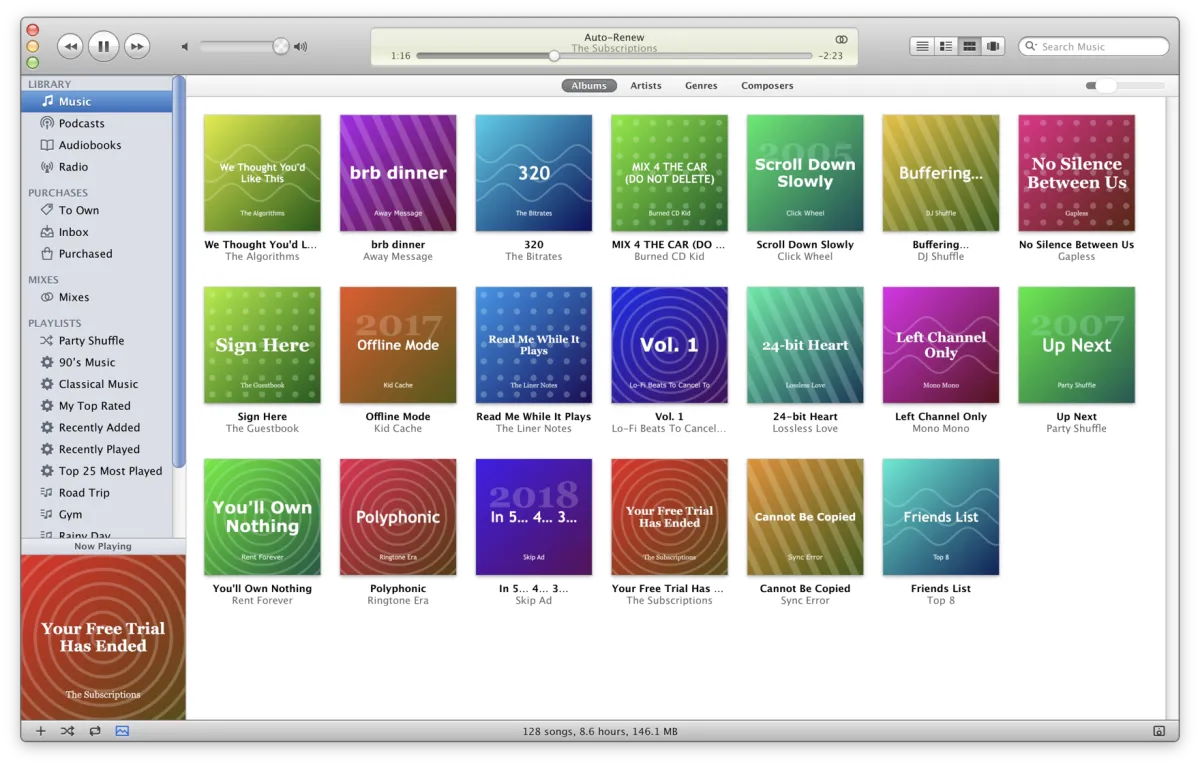
Album grid. Every album in your library. -
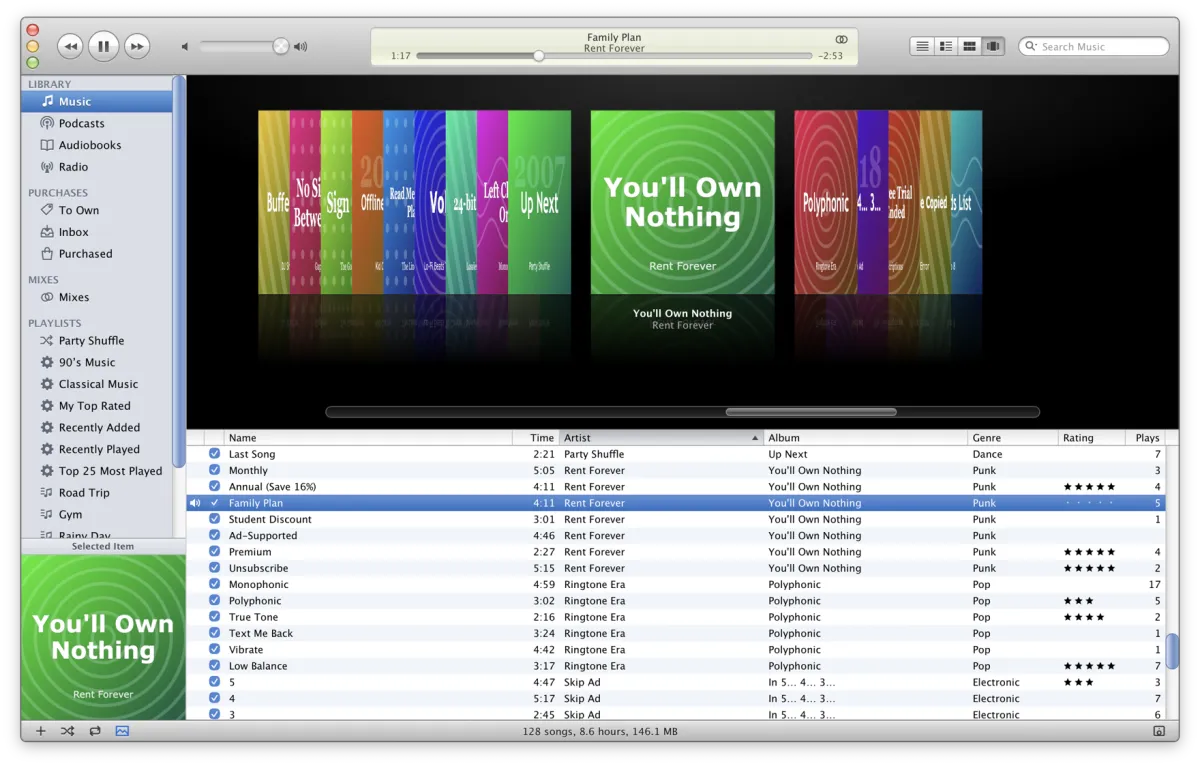
Album Artwork. Browse by cover. -
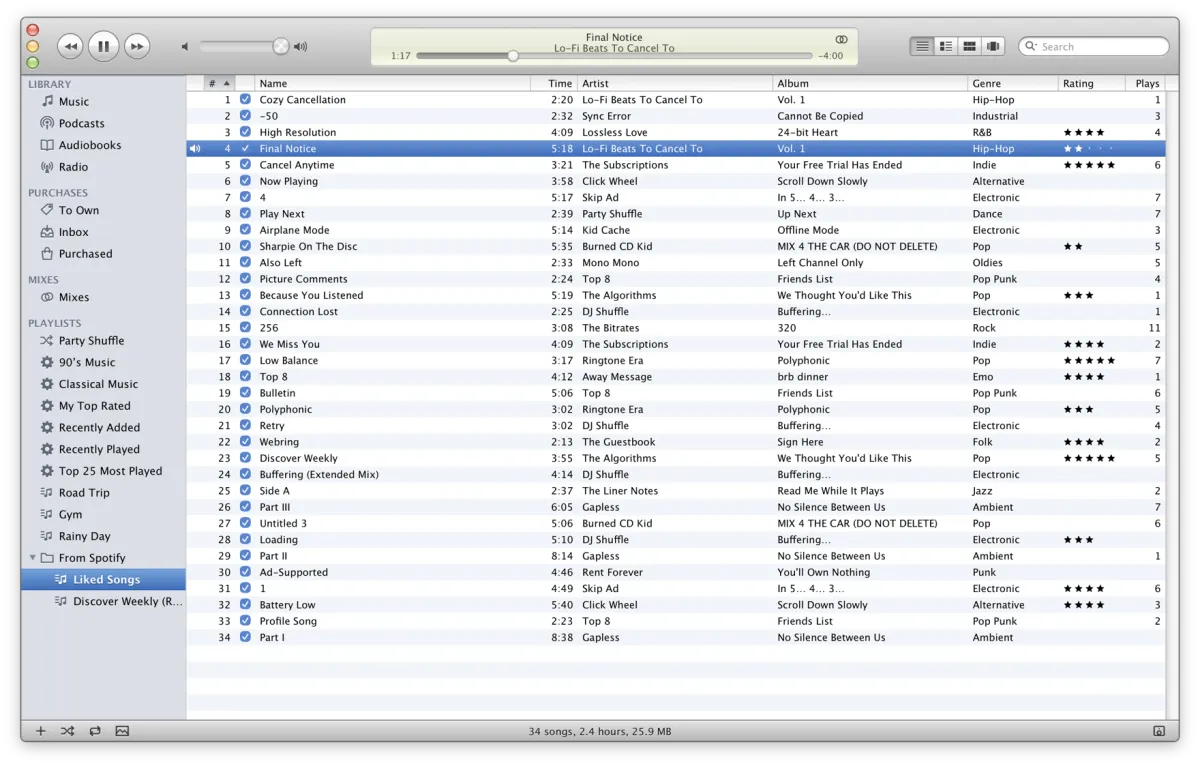
From Spotify. Liked Songs, rebuilt from songs you own. -
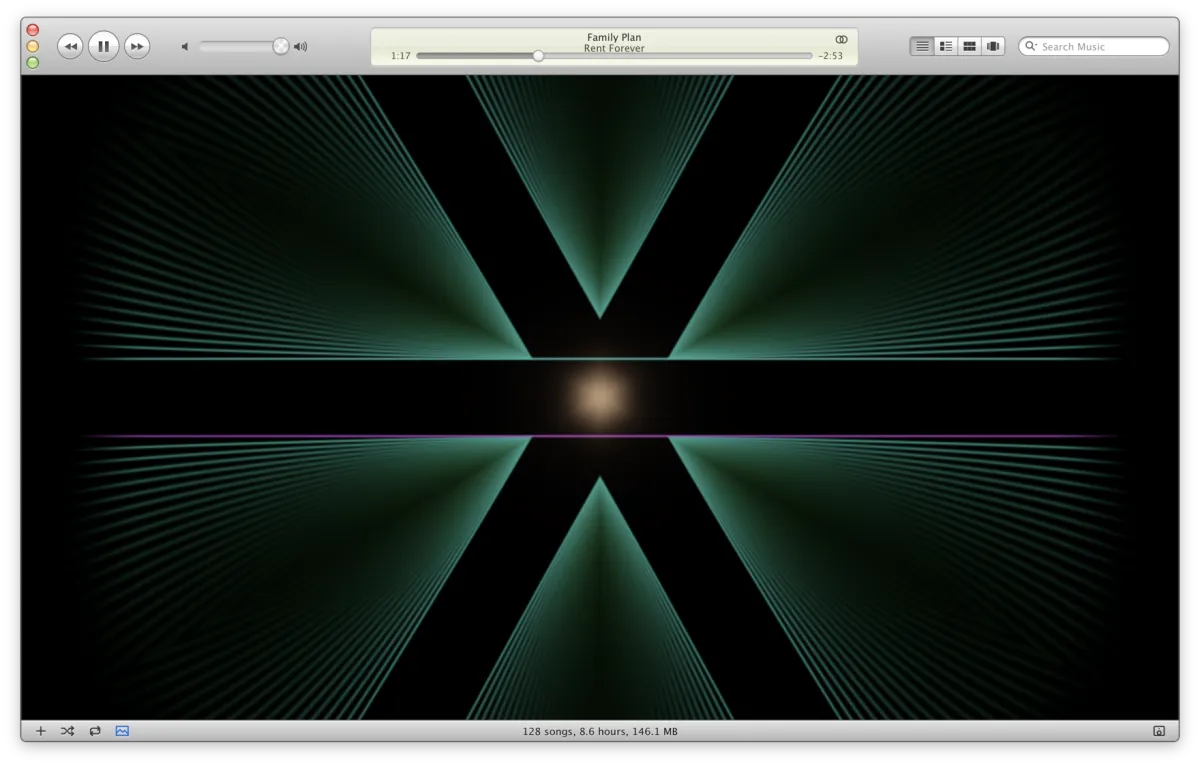
Visualizer. The Classic style.
The artists and albums in these screenshots are fictional.


